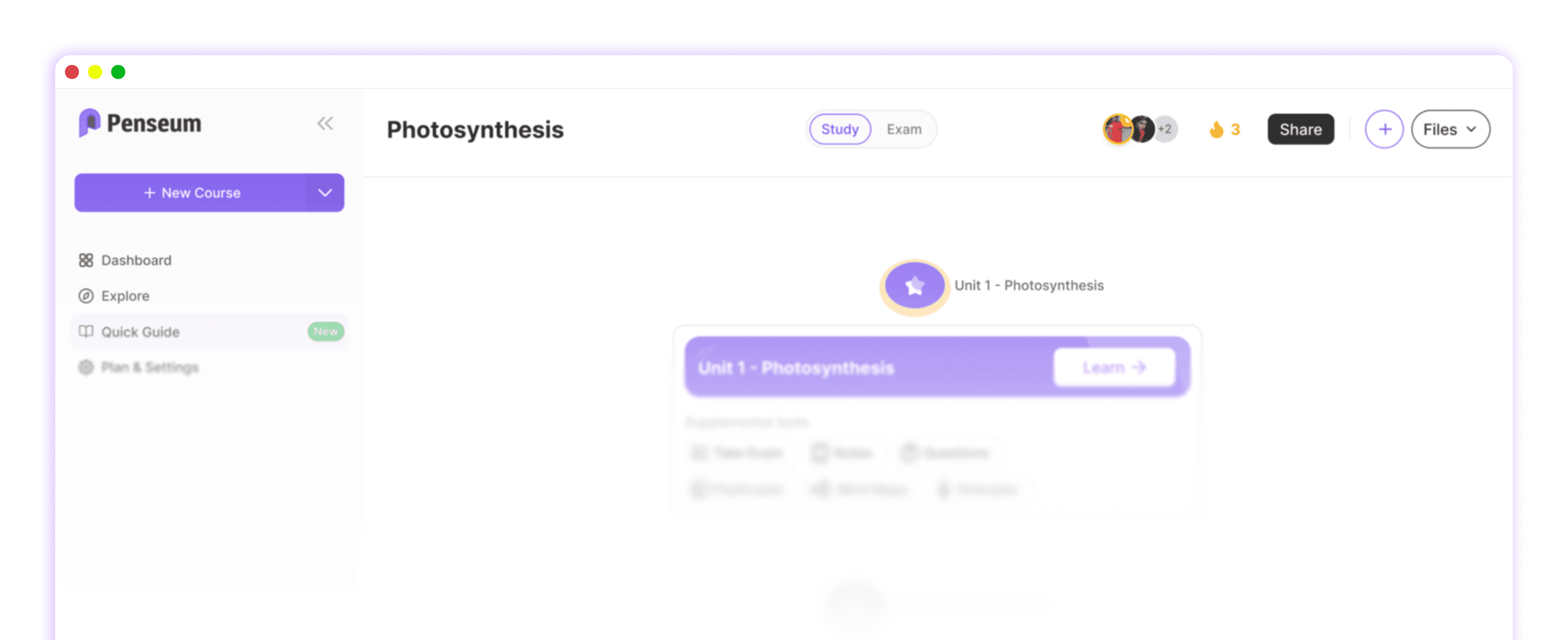
How to prepare for college exams on iPad Pro with AI
Penseum is an AI-powered iPad Pro study workspace that snaps into split-screen mode beside your digital notes to automatically generate custom exam roadmaps from PDF syllabi. Students use the Apple Pencil on the interactive canvas to solve complex problems and receive live voice feedback for rigorous test preparation.
Instead of constantly switching between tabs to check answers, learners get live auditory feedback pointing out specific errors in their handwritten formulas as they work. The platform functions as a highly responsive virtual teaching assistant that sees exactly what you write on the screen and talks back to you in real time.
For heavy exam preparation, this side-by-side methodology transforms passive reading into active engagement. By combining the iPad Pro's high-refresh-rate display with contextual AI, you can condense weeks of dense college material into targeted practice sessions that directly mirror your upcoming finals.
Step 1: Snap Penseum into iPad Pro Split View
Tap the multitasking three dots (the ellipsis icon) at the top center of your iPad Pro display to open Penseum alongside your preferred note-taking application. To maximize study efficiency without constant app-switching, select GoodNotes 6 ($9.99/year) or Apple Notes for your left panel, leaving Penseum running natively in the right panel. Adjust the center divider to a 50/50 screen ratio, which provides adequate real estate for both reading lecture material and interacting with your AI tutor.
To execute this setup properly, follow these exact steps:
1. Open your primary note-taking app, such as GoodNotes 6.
2. Tap the three multitasking dots at the top center of your screen.
3. Select Split View, which will push your notes to the side.
4. Choose Safari or the Penseum web app from your home screen.
5. Drag the center slider exactly to the middle of the screen to lock a 50/50 layout.
According to cognitive load research published by the American Psychological Association, constant context-switching between tabs reduces comprehension retention. By keeping your study workspace locked in Split View, you maintain a continuous visual line between your source material and your generated study tools.
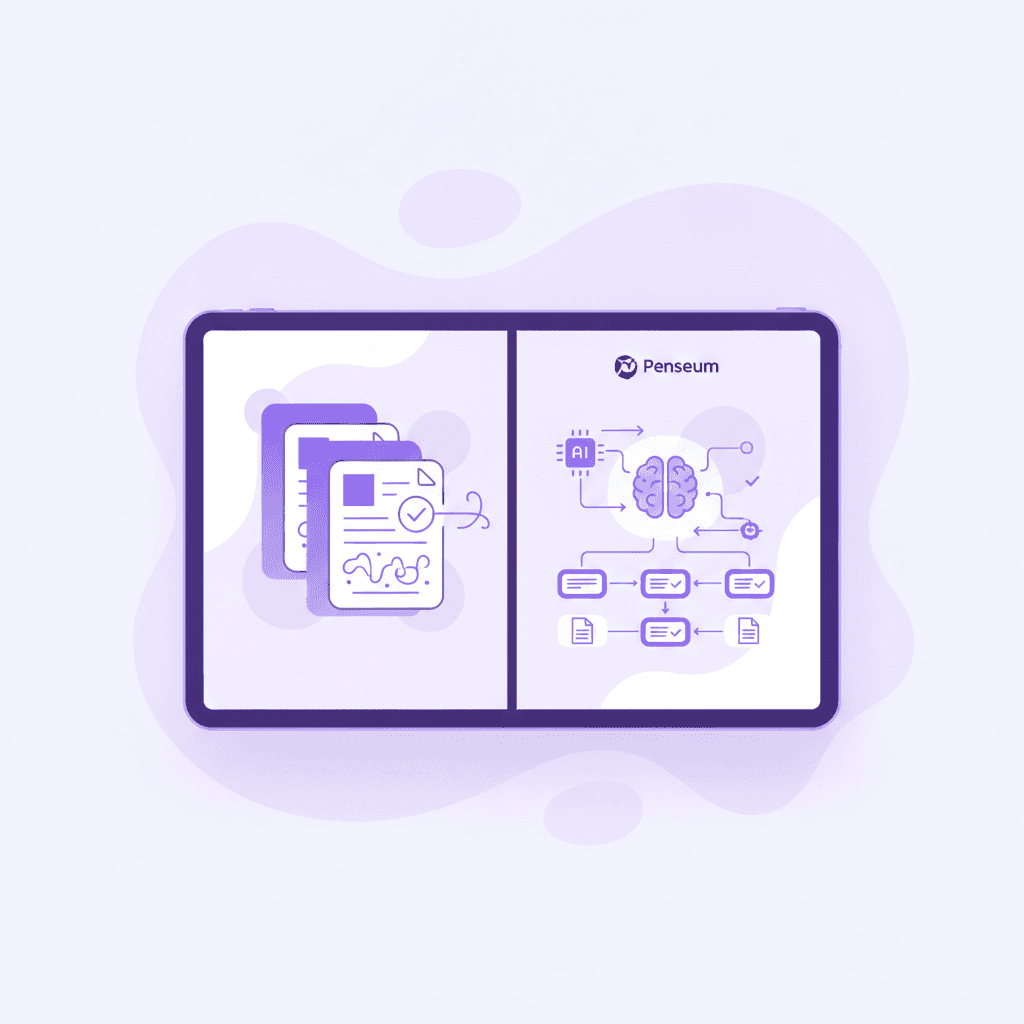
Drag your raw lecture PDFs directly from your iOS Files app into the Penseum workspace upload module. iPadOS allows you to press and hold a PDF syllabus or a 50MB slide deck from the Files slide-over window and drop it seamlessly into the browser interface. The platform instantly processes these files to automatically generate a custom study roadmap. College students managing heavy course loads can upload entire semester folders at once, bypassing the restrictive file size limits often found on free tiers of generic AI chatbots.
Unlike basic document viewers, Your 1-1 AI Tutor structures this uploaded content into a personalized dashboard. If you are a medical student drowning in homework and impending tests, dragging your anatomy PDFs into the workspace instantly transforms raw text into a structured, week-by-week review schedule. For instance, consider a first-year nursing student handling a massive 200-page anatomy textbook chapter and a 12-week syllabus. By placing their textbook on the left and this study workspace on the right, the AI breaks down the nervous system, cardiovascular system, and respiratory system into manageable daily milestones automatically.
Step 2: Generate flashcards from uploaded PDFs
Tap the 'Generate Study Guide' control in the Penseum dashboard to parse your uploaded PDF documents into organized sections. The Auto-Roadmap engine scans your syllabus and lecture slides, breaking down weeks of academic material into digestible, testable modules. This eliminates the tedious process of manually copying and pasting text into ChatGPT Plus ($20/month) just to get a basic summary.
Once the system processes your documents, select the 'Flashcards' tab to review automated active recall questions generated from the exact text of your lecture files. Active recall is proven by researchers at Stanford University to improve long-term memory retention significantly better than passive rereading. In a detailed analysis of retrieval practice, researchers found that active retrieval can boost long-term retention by up to 50% compared to simply highlighting text. Rather than spending three hours manually typing out terminology cards in Quizlet Plus ($7.99/month) or building complex decks in Anki, the platform creates them instantly based solely on your professor's assigned readings.
To build and use your automated decks, follow these instructions:
1. Tap 'Generate Study Guide' and select your uploaded syllabus or lecture PDF.
2. Wait 10 to 15 seconds for the Auto-Roadmap engine to output the module breakdown.
3. Tap the 'Flashcards' tab at the top of the interface to reveal your newly generated deck.
4. Swipe right on cards you answer correctly and left on those you miss to activate the spaced repetition algorithm.

The flashcard generation specifically targets the concepts most likely to appear on your college exams. Economics students can upload complex market theory materials, and the AI will automatically extract key formulas and definitions. Imagine an economics major preparing for a macroeconomics midterm who uploads a 40-slide deck on Keynesian cross models. The system instantly extracts formulas like the multiplier effect and definitions of marginal propensity to consume, converting them into a 25-card deck without any manual typing. As noted by users of AI that builds your study guides for you., this automated generation replaces the need for late-night manual study guide creation. Additionally, the flashcard module allows you to track your mastery of specific terms, shifting concepts you struggle with to the front of your review queue while delaying the terms you already know.
If you require deeper assessment beyond simple vocabulary, toggle from the flashcards to the quiz module. The platform generates multiple-choice and short-answer questions that mimic the formatting of actual university midterms. This cohesive ecosystem means over 1,600,000+ learners globally rely on the platform to transition directly from note-taking to active testing without ever leaving their iPad Pro workspace.
Step 3: Solve problems on the Penseum interactive canvas
Activate the live canvas feature in Penseum and use your Apple Pencil Pro to write out math or science problem steps directly on the screen. While generic AI tools require you to type out complex calculus formulas or upload static JPEG photos of your notebook, this interactive workspace sees your actual work on the screen and responds to it. Type your question, upload a problem set, or write directly on the canvas while your AI tutor watches and waits.
Stop writing to trigger the AI tutor to scan the screen, identify specific errors in your work, and mark the exact location of the mistake. If you reverse a sign in a differential equation or misdraw a chemical bond, the tutor spots the error instantly. It does not simply hand you the final answer; it draws diagrams and works through solutions live on your canvas, mimicking the experience of sitting next to a human teaching assistant.

This real-time visual explanation is a distinct advantage over competitors like NotebookLM, which generates text-only responses and offers no visual explanation or working-out process. When studying for STEM exams, reading a text-based explanation of a geometry problem is rarely sufficient. The live canvas integrates with the Apple Pencil's hover and pressure sensitivity features, allowing you to sketch out physics vectors or engineering diagrams naturally. Research published in Frontiers in Psychology (2021) demonstrates that handwriting activates sensorimotor brain networks associated with memory encoding up to 30% more effectively than typing on a keyboard.
Take a physics major struggling with kinematic equations as a practical scenario. The student draws a projectile motion diagram directly on the canvas. If they mistakenly use the cosine function instead of the sine function for the vertical velocity component, the AI tutor immediately highlights the exact trigonometric error in red ink on the screen and prompts the student to recalculate the Y-axis vector.
The system catches your specific mistake, explains what to fix, and then prompts you to try again until you actually have it right. This iterative feedback loop prevents students from memorizing incorrect methodologies. By bridging the gap between digital text and handwritten problem-solving, the platform acts as a 1-1 tutor in your pocket, fully utilizing the iPad Pro's Liquid Retina display and hardware capabilities.
Step 4: Run voice-guided practice exams
Navigate to the 'Practice' module to load your generated exam materials and initiate a simulated test environment. Instead of silently reading multiple-choice options, you can run voice-guided practice exams that force you to articulate your understanding. Speak directly into the iPad Pro microphone to answer questions out loud, simulating the pressure of an oral exam or a rigorous study group session.
To initiate this audio-driven workflow, use these steps:
1. Open the 'Practice' module and select a generated quiz from your syllabus.
2. Tap the microphone icon positioned at the bottom of the active interface.
3. Speak your answer clearly into the device, detailing your entire thought process.
4. Listen as the AI tutor provides immediate auditory feedback and follow-up inquiries.
Upon submitting your verbal answer, you receive instant step-by-step audio corrections from the AI tutor. The tutor explains your problem in real-time voice, out loud, breaking down exactly where your reasoning fell short. According to educational data from EDUCAUSE, auditory feedback combined with active verbalization significantly reinforces neural pathways compared to text-only interactions.

Generic AI tools typically stop after providing one text-based answer, leaving the rest of the learning process up to the student. In contrast, the voice-tutor keeps teaching until it clicks. If you answer an economics question about supply and demand incorrectly, the AI will verbally walk you through the correct market graph logic. You can interrupt the tutor using your voice to ask clarifying questions, creating a dynamic, conversational study session.
This feature is particularly valuable for language learners, law students preparing for moot court, or medical students practicing patient diagnoses. A pre-med student, for example, can simulate a clinical diagnosis by verbally walking through a patient's symptoms out loud. If the student misses a primary contraindication, the AI tutor interrupts with voice audio to correct the diagnostic pathway. By utilizing the advanced microphone array on the iPad Pro, the software captures your nuanced explanations and provides tailored audio feedback. You are not forced to read identical, generic explanations given to every student; you receive customized, conversational guidance that adapts to your specific learning pace.
Step 5: Identify knowledge gaps with AI exam analytics
As you work through flashcards, interactive canvas problems, and voice-guided practice exams, the platform compiles underlying data on your academic performance. The AI tracks which specific chapters or concepts take you the longest to answer correctly and where your overall error rate is highest across different subjects.
If you constantly miss questions regarding cellular respiration in biology, the dashboard flags this topic in red. Three days before your midterm, you can look at your analytics dashboard to see exactly which modules require a final, intensive review session. This targeted approach prevents you from wasting valuable hours studying introductory material you have already mastered.
A 2020 study published by the Journal of Educational Psychology found that college students who use targeted self-assessment tools score up to 15% higher on final exams by successfully reallocating their study time to documented weak points. You can instruct the system to generate custom mini-exams focused exclusively on these flagged areas, ensuring complete confidence before you step into the testing hall.
How to optimize iPad Pro settings for marathon study sessions
Running split-screen applications, Bluetooth accessories, and active microphone arrays can quickly drain your battery during finals week. To maximize your hardware's efficiency, navigate to your iPadOS Settings and enable a dedicated Focus Mode. Creating a specific "Study" Focus Mode blocks incoming social media notifications and text messages, keeping your attention completely locked on your AI tutor and your digital notes.
Next, turn down your screen brightness to around 60% and ensure True Tone is enabled in your Display & Brightness settings. True Tone automatically adjusts the color temperature of the Liquid Retina display to match your ambient lighting environment, which drastically reduces eye strain during late-night reading sessions in the library. If your professor uploads particularly long lecture videos, you can use the Stage Manager feature to keep a small video player hovering in the corner while dedicating the majority of the screen to your workspace and GoodNotes.
Finally, configure your Apple Pencil Pro settings for maximum mechanical efficiency. Go to Settings > Apple Pencil and customize the double-tap or squeeze gestures to switch instantly between the primary pen tool and the eraser. This micro-optimization saves hundreds of manual screen taps per hour, keeping your hand in a continuous, uninterrupted writing flow while you tackle extensive problem sets on the interactive canvas.
Comparison Table: Penseum vs. Generic AI Tools on iPad Pro
When optimizing your iPad Pro for college exam preparation, relying on general-purpose AI platforms often results in a fragmented workflow. Students frequently find themselves paying for multiple subscriptions—such as Notion AI ($10/month) for notes and ChatGPT Plus for problem-solving—without gaining native Apple Pencil support.
The table below evaluates leading tools across five critical iPad-native features, demonstrating why dedicated study workspaces outperform generic text generators.
Feature | Penseum | ChatGPT Plus | NotebookLM | Notion AI |
|---|---|---|---|---|
Live Voice Explanations | ✅ (Real-time, step-by-step) | ✅ (Conversational mode) | ❌ (Audio summaries only) | ❌ (Text only) |
Canvas Drawing Responses | ✅ (Draws directly on screen) | ❌ (Generates static images) | ❌ (No visual generation) | ❌ (Text only) |
Apple Pencil Compatibility | ✅ (Live tracking & marking) | ❌ (Must upload screenshots) | ❌ (Keyboard reliant) | ❌ (Keyboard reliant) |
Split-Screen Syllabus Parsing | ✅ (Auto-generates roadmaps) | ❌ (Requires manual prompting) | ✅ (Document parsing) | ✅ (Workspace integration) |
Real-time Error Marking | ✅ (Spots specific handwriting errors) | ❌ (General text feedback) | ❌ (No problem-solving capability) | ❌ (Formatting corrections only) |
As shown in the comparison, generic AI chatbots give you a text response and wait for your next message. They cannot see what you are actively doing on the screen and only know what you manually type. By upgrading to a specialized tool that sees your actual work on the screen, you eliminate the friction of translating visual math or science problems into text prompts. While Penseum is free to use, serious students can upgrade to a premium subscription for $29.99 to unlock unlimited access to the most advanced AI models and voice features during finals week.
If you are looking for a place to ask questions, share feedback, or meet other students using these workflows, the platform hosts a growing community of 1,000+ learners on Discord. Additionally, ambitious college students can apply for the Ambassador Program to represent the brand on their campuses, gaining real startup experience while mastering their own study habits.
Frequently Asked Questions
Is Penseum free to use?
Yes, Penseum is free to use for standard study features. For advanced capabilities and higher usage limits during intensive exam seasons, a premium subscription is available for $29.99.
What types of study materials can I upload to the platform?
You can upload raw lecture files, syllabus documents, PowerPoint slides, and PDF reading materials. The AI will automatically parse these files to generate custom study roadmaps, flashcards, and quizzes.
Can I access my generated study guides on my mobile device?
Yes, you can access the platform on your mobile device. While the iPad Pro provides the best experience for the interactive Apple Pencil canvas and Split View multitasking, your generated flashcards, quizzes, and study roadmaps sync perfectly for on-the-go review on your smartphone.
How does the AI catch mistakes in my handwritten work?
When you write directly on the interactive canvas using your Apple Pencil, the AI tutor continuously monitors your visual input. It identifies specific mathematical, structural, or logical errors in real-time, marks the exact location of the mistake on your screen, and provides step-by-step voice feedback on how to correct it.
Sources
https://quizlet.com/plus
Related guides
Ready to study smarter?
Start turning your notes into guides, quizzes, and flashcards in seconds.